In a world where 81% of data breaches are due to weak or stolen passwords, businesses are eagerly looking for safer ways to secure their applications. Enter passkeys – a new form of login that promises to be both more secure and more user-friendly than traditional passwords. In this post, we’ll break down the difference between passwords and passkeys, and explain why moving to passkeys can greatly improve security for your business’s SaaS applications (and save everyone a lot of password-related hassle). [keepersecurity.com]
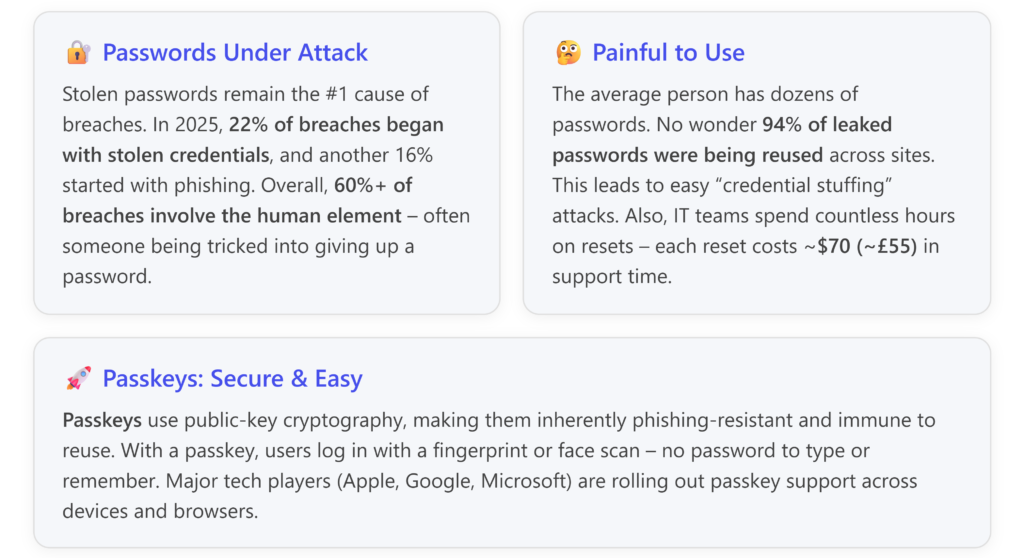
Let’s dive deeper into what passwords are versus what passkeys are, then compare their security and usability, and finally look at how your business can implement passkeys for safer SaaS logins.
What Exactly Is a Password (and Why Do We Struggle with Them)?
A password is a secret string of characters that you create to prove your identity when logging into a system. It’s typically something only you know, and when you enter it, the website or app checks if it matches the secret on file for your account. If it matches, you’re in. [theconversation.com]
- How passwords are stored: Reputable services don’t store your actual password in plain text; instead, they store a cryptographic hash – a one-way scrambled version of it. When you log in, the system hashes what you entered and compares it to the stored hash. If they match, it assumes you entered the right password. However, if hackers breach a company and steal these hashes, they can often crack them (especially if the password was weak) using powerful computers. That’s why a leaked password database often leads to many accounts being compromised afterward.
- The human factor: In theory, a password can be any long, random string of characters (like
Xk$9#pL!qTf@). In practice, humans are terrible at remembering random strings. So we pick weak or common passwords (such as123456orPassword!), or reuse the same password on multiple sites. A 2023 study of 19 billion leaked passwords found an astonishing 94% were reused across sites, and many were simplistic sequences or common words. This means if one site gets breached, attackers try those same email/password combos on other sites – a cheap and effective tactic known as credential stuffing. [theconversation.com] - Phishing vulnerability: Passwords are also dangerously easy to phish. Phishing is when a scammer tricks you into entering your credentials into a fake login page. For example, an email says “Your account is compromised, click here to secure it,” leading you to a perfect copy of your bank’s login. You unwittingly type your username and password – and now the attacker has them. Because the password is a shared secret (you and the service both know it), a phisher can steal it and impersonate you. With an estimated 3+ billion phishing emails sent per day globally, the odds of someone in your company encountering a convincing fake are high. [keepersecurity.com][theconversation.com]
- Ongoing maintenance headaches: Using passwords securely means following a lot of best practices: use long unique passwords for every account, change them periodically, don’t share them, enable multi-factor authentication, etc. For users, this is overwhelming without a password manager. And for IT, password resets are a constant drain – employees forget them or get locked out, and each helpdesk password reset request costs time and money (studies peg it around $70 in labour per reset on average). This not only hits the IT support budget but also frustrates users and slows down their work. [keepersecurity.com]
In summary, passwords have been the mainstay of authentication for decades: “something you know” to prove who you are. But they’re a single point of failure – if that “something” gets known by the wrong person, it’s game over. Now let’s look at a modern alternative designed to fix these flaws.
What Is a Passkey (and How Does It Work)?
A passkey is essentially a passwordless login credential based on public-key cryptography. Instead of a shared secret that you type, it uses a pair of cryptographic keys – one stored on your device and one stored on the server – to verify you.
Here’s a non-technical way to picture it: Imagine every website is a lock, and you have a unique magical key for each lock. However, this key can’t physically leave your possession. When you want to unlock the door (log in), the lock sends out a special challenge – like a random puzzle – that only your key can solve. Your key solves the puzzle and sends back a response proving it’s you, without ever handing over the key itself. The lock says “yep, that’s the right key” and opens.
Now the real details:
- Two keys instead of one password: When you set up a passkey for an account, your device generates two mathematically linked keys: [keepersecurity.com], [theconversation.com]
- a private key, which stays on your device (phone, laptop, etc.) and is usually protected by the device (often locked behind your fingerprint, face scan, or device PIN), and
- a public key, which gets sent to the online service and stored with your account. The public key can be shared freely; it only works with its matching private key.
- Logging in with a passkey: When you try to log in, the server sends a challenge (a random piece of data). Your device sees which account (and website) is requesting and finds the corresponding private key. It will then ask you to authenticate on your device – typically by using the same method you use to unlock the device, like scanning your fingerprint or face, or entering your phone’s PIN. This step ensures it’s really you using the device. Once you approve, the device uses your private key to sign the challenge and sends that signed response back to the server. The server uses your public key to verify the signature. If it checks out, it knows “someone with the private key responded correctly, so the user is authentic.” [keepersecurity.com], [theconversation.com]
- ✨ Analogy: This is like the server handing you a padlock and saying “open this.” Only the real key (private key) can open it, and when you do, the server recognizes the unique markings of your key (via the public key) without ever seeing the key directly.
- No shared secrets: Notice that at no point is a secret (like a password) sent or even requested. You never type a passkey. In fact, as a user you don’t even see the passkey values – they’re just keys in your device’s secure storage. To you, logging in with a passkey usually just means confirming a prompt on your phone or computer (or automatically via a trusted device). This means there’s nothing to phish – if a fake site tries to ask for a passkey, your device won’t have a matching key to use, and there’s no password to type in by mistake. [keepersecurity.com], [theconversation.com]
- Device-based = inherent MFA: Passkeys are often called “phishing-resistant MFA” because possession of the device acts as a factor (something you have) and the biometric or PIN is the second factor (something you are/know) – yet the experience feels like a single quick step for the user. The security is built-in. Contrast that with passwords: you start with a single factor that’s weak, then we add MFA on top (like an app code or SMS) to try to shore it up. With passkeys, every login is already a form of two-factor auth, but it feels seamless (touch fingerprint and you’re in). Microsoft’s identity team put it this way: the device itself becomes the authenticator, making passkeys “even more secure than passwords since that device will always be required to log in”. [keepersecurity.com]
- Unique keys for each service: Each account/website gets its own key pair. This is huge: it means no more credential reuse across services. If one site’s database is compromised, only that site’s public keys are exposed – which are useless without the private keys (and those never left users’ devices). An attacker can’t take a key from a breached site and use it to log in somewhere else, or even on the same site in another instance. In other words, passkeys completely sidestep the “one password hacked, many accounts at risk” nightmare that plagues passwords. [theconversation.com][keepersecurity.com], [theconversation.com]
- Who supports passkeys? Passkeys are built on the FIDO2 / WebAuthn standards (you might hear those terms). They started gaining wide support around 2022. Now all major operating systems and browsers support passkeys, and big players like Apple, Google, Microsoft, PayPal, Adobe, Best Buy, and Amazon have implemented them for accounts. For example, you can use a passkey instead of a Google account password, or log into a Microsoft 365 account with a passkey if enabled. Passkeys can sync across your devices through cloud services (like Apple’s iCloud Keychain or Google/Chrome account) so that a passkey made on your phone can be available on your laptop too – making them practical across multiple devices. [keepersecurity.com], [theconversation.com][keepersecurity.com]
In short, a passkey is like a supercharged, un-phishable password that you never have to remember or type. It leverages cryptography under the hood, but from a user’s perspective it’s usually as simple as tapping “Yes, it’s me” on your phone.
Passkeys vs Passwords: Security Showdown
From the descriptions above, it’s already clear passkeys have some strong security advantages. Here we’ll highlight the key differences in security between traditional passwords and passkeys:
- ✨ No Phishing, No Sharing: With passwords, a phisher can trick you into giving away your secret. With passkeys, there’s no secret to give away – you can’t be conned into handing over a scan of your face or a cryptographic signature that isn’t tied to the legitimate site. The login won’t proceed on a fake site because your device checks the web domain as part of the challenge (this is a feature of the WebAuthn standard) – it will simply never offer a passkey for “badguy.com” when you only have one for “mybank.com”. Essentially, passkeys are intrinsically phishing-resistant. This is perhaps the biggest win: Google’s security blog noted zero account takeovers in their employee rollout of FIDO authentication, compared to regular occurrences before, due to eliminating phishing risk. [keepersecurity.com], [theconversation.com]
- 🔒 Robust Against Credential Theft: Passwords, even hashed, are attractive to steal. If a company is breached, your password might get disclosed (or cracked), and hackers try it elsewhere. In contrast, if a site using passkeys gets breached, the attackers might obtain lots of public keys – but those are useless without private keys, which were never on the server. It’d be as if a thief stole a database of locks but didn’t get any of the keys. Also importantly, passkeys remove the threat of offline cracking. Hackers can spend months brute-forcing a stolen password hash. But a stolen public key yields no such avenue – it’s not a secret, it’s already public. Therefore, passkeys greatly reduce the damage of a data breach for credentials. [keepersecurity.com], [theconversation.com]
- 🔑 No Weak or Reused Credentials: Humans pick weak passwords and reuse them; passkeys don’t have that problem. Every passkey is effectively a long, random cryptographic secret (the private key) generated by the device. Users don’t create it, and can’t weaken it. There’s no equivalent of choosing “Winter2023!” as a passkey – the software handles key generation, so it’s always strong. This also means users can’t reuse the same credential on two services by mistake – each passkey is unique per service by design. Eliminating weak and reused passwords closes a gigantic security hole in most organisations. Remember, 80+% of breaches trace back to compromised passwords – passkeys directly address that by removing the “choose/remember a password” step entirely (and all the human errors that come with it). [keepersecurity.com][theconversation.com][keepersecurity.com]
- 🎣 Immune to Credential Stuffing: Credential stuffing (where attackers try username/password combos leaked from elsewhere) simply doesn’t work if you’ve gone passwordless with passkeys. There’s nothing to stuff. An attacker who stole an employee’s old password from LinkedIn can’t do anything with it against your passkey-enabled app, since login requires the user’s private key on their device. This cuts off one of the most common attack vectors cold.
- 🔐 Strong MFA Built-In: As mentioned, passkeys inherently require something you have (your device with the private key) and something you are (biometric) or know (device PIN). So you’re effectively getting multi-factor authentication by default. With passwords, we highly recommend enabling MFA (like one-time codes or push prompts) to mitigate password weaknesses – but many people don’t, and even when they do, basic MFA can be phished too (attackers can trick users into giving OTP codes or approving prompts). Passkeys use FIDO2 cryptographic MFA, which is resistant to those “MFA bypass” tricks such as man-in-the-middle attacks that steal OTPs. In short, passkeys = strong 2FA with one gesture. [keepersecurity.com]
Does this mean passkeys are perfect? Not entirely – they have some new considerations (for example, if you lose your device and haven’t backed up your keys, account recovery can be an issue – though solutions exist such as cloud-synced keys or alternate devices as backup). And, a very determined attacker who gains complete control of your device could misuse stored passkeys (similar to if they stole a device that was already logged in). But in terms of remote attacks – the kind that make up the vast majority of breaches – passkeys eliminate the weaknesses that hackers most commonly exploit in passwords.
To sum up: From a security standpoint, passkeys are the clear winner. They eliminate the threats of phishing, credential reuse, and brute-force cracking, which are the very issues that make passwords so vulnerable. They’re like having a different unforgeable, unstealable key for every account, rather than hundreds of copies of the same weak key floating around. [theconversation.com], [theconversation.com]
Passkeys vs Passwords: Usability and User Experience
Security improvements often come at the cost of convenience – but passkeys manage to improve security andmake life easier for users. This is a rare win-win. Here’s how passwords and passkeys stack up on usability:
- 🙍♀️ User memory & effort:Passwords rely entirely on human memory (or a manager app). Creating and recalling dozens of strong, unique passwords is practically impossible without help. Users often resort to writing them down, using the same one everywhere, or picking simple ones – all of which hurt security. Passkeys remove this burden. Users don’t need to craft or memorize secrets. When setting up an account, instead of “Please create a password”, it’s “Want to use a passkey?” – and with one tap a cryptographic key is created. Going forward, logging in is as simple as unlocking your device (which you’re doing 50 times a day anyway). There’s no “I forgot my password” because there is no password to forget. This dramatically cuts down helpdesk calls for resets and the frustration employees feel when locked out. Small business owners know that forgotten passwords can derail a whole morning’s work – passkeys can virtually eliminate that scenario.
- ⌚ Speed of login: Think of the time to type a complex password (especially on a small phone keyboard, possibly making a typo or two) – maybe 10-15 seconds or more. By contrast, using a passkey is often under 2 seconds: you get a prompt and use Touch ID / Face ID / Windows Hello quickly. It’s literally a touch or a glance and you’re in. That convenience adds up; employees aren’t slowed down by login prompts or hunting through a password manager. It also means fewer incentives to try to bypass security. For instance, if logging into a company VPN requires a long unique password that changes every 90 days plus an MFA code, some users might procrastinate updates or find workarounds. If instead they can log in with a fingerprint via passkey, they’re more likely to comply with using the secure path every time because it’s actually easier than the insecure workarounds.
- 😀 User satisfaction and productivity: People generally hate passwords – they’re a top source of IT complaints. By adopting passkeys, you’re not just tightening security, you’re providing a better user experience. It’s rare that a security measure makes users happier. Passkeys are one of those rare cases because they remove friction. This can improve morale and reduce “security fatigue.” And on the IT side, admins can focus on projects beyond constant account unlocks. (According to one report, IT support staff spend up to 50% of their time on routine password reset issues in some organisations. That’s a lot of wasted productivity that could be reclaimed.) [keepersecurity.com]
- 💸 Reduced support costs: We touched on this, but it’s worth emphasizing: fewer password problems = fewer support tickets = direct cost savings. Estimates vary, but if you have, say, 100 employees and each needs just 2 password resets a year at $70 each (a conservative estimate), that’s $14,000/year blown on the password reset hamster wheel. In reality, many employees need many more resets (or spend untracked hours trying to remember/reset themselves). Passkeys can slash this significantly. One analysis found the average large company spends $5.2 million annually on password resets when you factor lost productivity. Small businesses won’t be that high, but proportionally it’s still significant. Implementing passkeys is like removing an entire category of tedious work for both users and IT.[keepersecurity.com]
- Multi-device use: With passwords, if you know it, you can log in from any device easily (assuming you remember it or have it stored). With passkeys, the private key initially lives on one device. What if you want to log in from a different device (say, you created a passkey on your laptop, but now want to log in from your phone)? Solutions exist: platform vendors allow secure syncing of your passkeys through cloud accounts (e.g., Apple syncs across your iCloud devices, Google does similar with Chrome/Android). There’s also a mechanism where if you’re on a new device, you can use your phone’s passkey via a QR code or Bluetooth prompt to log in. These are admittedly slightly more complex flows than just typing a memorized password on a new device, but they’re getting smoother as the tech matures. For businesses, if you’re using a centralized identity provider (like Microsoft Entra ID or Okta) with passkeys, you’ll likely guide users to register a passkey on each device they use regularly. It might take a little training, but it’s still easier than training them to make a 15-character password and rotate it quarterly. [keepersecurity.com]
- Onboarding and recovery:Creating a passkey login in the first place is usually straightforward (tap a button, use your biometrics, done). But account recovery if a user loses all their devices can be a pain point. With passwords, if you forget it, you click “reset” and go through email/SMS verification to set a new one. With passkeys, if you lose the only device that had the private key (and you didn’t have them synced or a backup method), recovery might mean falling back to another method (perhaps receiving a one-time login link from support, or using a recovery code given when you enrolled). From a business perspective, you’ll want to establish a clear recovery policy. Often this involves an admin or helpdesk being able to verify identity and either issue a one-time pass or re-enable a password login temporarily. This is part of implementation – it’s manageable, but something to be aware of. Users may need to be educated to add passkeys on multiple devices or store backup codes, to avoid getting locked out. The good news: because passkeys are tied to device platforms, vendors like Apple and Microsoft have integrated recovery into their ecosystems (e.g., if you lose your iPhone, your iCloud Keychain with passkeys can be restored on a new iPhone via your iCloud account, or a trusted contact, etc.).
Overall, on everyday usability, passkeys beat passwords. They turn “logins” from a dreaded chore into a quick, seamless part of the workflow. The primary trade-off is the initial setup and ensuring people have a way to recover. But those are solvable with planning, and they more than pay off in day-to-day simplification.
Why Passkeys Are a Game-Changer for Securing Your SaaS Environment
For small businesses and IT managers overseeing a suite of SaaS applications, passkeys offer significant benefits:
- Stronger Defense for Cloud Apps: SaaS applications (from email and CRM to project management tools) are often accessed via web logins – making them prime targets for phishing and credential stuffing. If employees use weak passwords or reuse them across apps, one breach can spell trouble across the board. By implementing passkeys, you dramatically harden the login security for all these services. Phishing emails to your staff can’t harvest logins that don’t exist. A leaked credential database won’t give a foothold into your other systems. Given that 22% of breaches start with stolen creds and 16% with phishing, passkeys directly tackle those vectors. It’s like vaccinating your login system against the most common attacks. [beyondidentity.com]
- Consistent Security Across All Apps: Many businesses use Single Sign-On (SSO) solutions to manage SaaS access – for example, one central identity (like Microsoft Entra ID, formerly Azure AD, or Okta) that employees use to log into multiple apps. If you enable passkey authentication on that central identity provider, you effectively upgrade the login for every connected app. For instance, an employee can use a passkey to sign into their Microsoft 365 account, which then gives them access to SharePoint, Teams, Outlook, and other integrated services without re-entering credentials. Similarly, if your SSO is integrated with third-party apps (Salesforce, Dropbox, etc.), one passkey login unlocks all, in a highly secure way. This not only improves security uniformly (no more weaker links like an app that couldn’t enforce MFA properly – passkey covers it), but also improves user convenience with one-tap access to many tools after a single strong authentication.
- Reduced Password Reset and Attack Overhead: SaaS sprawl often means password sprawl, which in turn means a steady stream of reset requests, lockouts, and potential account compromises. By moving to passkeys, you lighten the load. IT will see fewer “I can’t log in” tickets, and spend less time mitigating incidents of compromised passwords. Plus, you cut out the need for employees to update passwords periodically in dozens of places (a policy some companies still enforce, which is time-consuming and ironically can decrease security as people choose incrementally weaker variations). Fewer passwords = fewer points of failure in your IT management.
- Phishing Protection for Company Resources: A common scenario in attacks today: an employee’s SaaS account is phished, and the attacker uses it to access sensitive company data in, say, a file-sharing app or email system, then launches further attacks (like sending internal phishing as that user). Passkeys can stop that scenario cold. Even if an employee is tricked by a very realistic phishing page for, e.g., the company’s project management tool, their browser or device simply won’t complete the login because the origin is wrong. It’s like having a security guard that checks ID at the door of every app automatically. This is especially crucial for protecting valuable data stored in cloud services. With remote work and cloud adoption, the “front door” to your data is often a login page – passkeys reinforce that door significantly.
- Compliance and Cyber Insurance Benefits: Cyber insurers and compliance standards are increasingly pushing for “phishing-resistant MFA” for good reason. In regulated industries or just for general cyber insurance, showing that you’ve moved beyond passwords can reduce premiums or help meet security requirements. For example, the US government’s guidelines (and others) now explicitly recommend phishing-resistant methods (like FIDO2) over just SMS OTP or none at all. By adopting passkeys via FIDO2, you’re aligning with the latest best practices, potentially checking the box for some compliance standards and demonstrating proactive security to auditors or insurers. It’s a forward-looking move that can put your small business ahead of the curve in security maturity.
- Less Shadow IT & Better UX: Users frustrated by login issues might find unofficial ways to store credentials or bypass security (like keeping a spreadsheet of passwords, or using personal drives to avoid a complicated login to a secure system). By making authentication easy and secure, you encourage users to actually use the sanctioned tools and follow security protocols. Better UX leads to better security compliance. Employees are far more willing to log into the company’s approved password manager or VPN when it’s just a finger tap, instead of remembering a 14-character monstrosity. This means your SaaS estate stays under the umbrella of your security controls, rather than people skirting around them.
Bottom line: SaaS applications are the lifeblood of modern small businesses – and each one is an entry point that needs protection. Passkeys provide uniform, top-tier protection for all these entry points without overburdening your users. It’s one of the most effective steps you can take to prevent account takeovers, which are often the precursor to data breaches, business email compromise, and a host of other costly incidents. As one cybersecurity expert put it: eliminating passwords cuts off the hackers’ favorite path “through the front door”. [beyondidentity.com], [beyondidentity.com]
How to Start Implementing Passkeys in Your Business
Moving to passkeys might sound technically complex, but recent advances have made it surprisingly accessible. Here’s a practical guide to begin adopting passkeys for your team and customers:
- Check Your Identity Provider or Software for Passkey Support: If you use a centralized identity platform like Microsoft Entra ID (Azure AD) or Google Workspace, start there. Microsoft, Google, and Apple have all added support for passkeys in their ecosystems:
- Microsoft Entra ID: In mid-2025, Microsoft launched public preview support for passkeys (FIDO2) in Entra ID. This allows users to register a FIDO2 passkey (for example, using Windows Hello or an external security key) as an authentication method for their Office 365/Azure AD account. Check Microsoft’s documentation on “Enable passkeys for your organization” which will guide you through policy settings to allow FIDO2 authentication. In essence, you (the admin) can enable passwordless login, and users can then register their device’s biometric as a login method. As of now it may still be in preview, but it’s expected to become generally available as the kinks are worked out.
- Google Workspace: Google Accounts fully support passkeys. Users can go into their Google Account > Security > Passkeys and add a passkey. As an admin, you can encourage (or enforce) using passkeys for Google Workspace login. Google even suggests passkeys as the default for personal accounts now. If your business relies on Google login (for Gmail, Drive, etc.), you can start by having tech-savvy users try it out and eventually roll it out wider.
- Okta and other Identity Providers: Many third-party IAM platforms support WebAuthn/FIDO2. Okta, for instance, allows passwordless factor enrollment using WebAuthn. Check your provider’s docs for “FIDO2” or “passkey” support. Often it’s just a config switch to enable it as a factor, and then users can register devices.
- Identify Key Applications to Enable Passkeys: If you don’t have a centralized SSO, you might need to enable passkeys app by app. Prioritise critical applications that support it:
- Microsoft 365 – via Entra ID as above.
- Salesforce – supports WebAuthn authentication.
- AWS – supports hardware security keys (FIDO) for IAM login.
- Major password managers (if you use one for shared vaults) – many now support logging into the vault itself with a passkey.
- VPN or Remote Access – if using Azure AD or other SSO for VPN, that covers it; if not, consider solutions that integrate FIDO2 for VPN login.
- Check resources like the https://passkeys.directory/ (maintained by 1Password) which lists websites and services supporting passkeys. [keepersecurity.com]
- For customer-facing sites (if, say, you have a SaaS product you offer), consider adding support so your customers can log in with passkeys too. This can be a competitive advantage as users start preferring passwordless options.
- Use Security Keys for Non-Biometrics Scenarios: Some employees might not have a smartphone or modern laptop to use as an authenticator (though that’s increasingly rare). In such cases, you can issue hardware security keys (like YubiKeys or Feitian keys) that store passkeys. These devices can act as the private key store and often have a button or biometric on them to confirm presence. They can be attached via USB/NFC. Microsoft Entra, Google, etc., all support these as FIDO2 authenticators. Having a few on hand for those who need them (or as backup tokens) is a good idea. They’re relatively inexpensive (~£40 each) and extremely effective.
- Pilot with a Small Group: Roll out passkeys to a subset of users first – maybe your IT team and a few willing employees. Let them register passkeys and use them for daily work. Gather feedback: Did they have any trouble setting it up? How was the experience logging in to each app? This will surface any compatibility issues or user confusion points in a low-risk way. Typically, the feedback is positive (“Logging in was so fast!”), but pay attention if, for example, someone’s older Android phone had an issue, etc.
- Educate Your Users: Like any new tech, a bit of explanation helps. However, you can keep it simple and even frame it as an upgrade, not a burden:
- Explain what a passkey is in simple terms: e.g. “You’ll log in with your fingerprint or face instead of a password – it’s more secure and easier for you. No more password resets!”
- Emphasize phishing protection: employees may have gone through phishing training; let them know this will greatly reduce the chance of those attacks succeeding. “Even if you accidentally click a bad link, the attacker still can’t get into your account without your device.”
- Provide a short how-to: perhaps a one-pager with screenshots on how to register a passkey for your main apps. (For instance, “Go to office.com, Account -> Security info -> Add sign-in method -> Add a security key or sign in with a passkey.”)
- Address recovery: Tell users what to do if they lose a device or get a new phone. For example: “Make sure you add a passkey on at least two devices (like your laptop and phone). If you lose all your devices, call IT and we’ll help you regain access via a one-time code.” This prevents panic and sets expectations.
- Enable “Passwordless” Policies when Ready: Many systems allow you to require passkey sign-in or at least not allow password-only sign-in. Once most of your users have passkeys set up, you can consider enforcing that. For example, Entra ID lets you enforce MFA (which a passkey satisfies) for all logins, or even go fully passwordless by not allowing pure password auth. The end goal (perhaps a year down the line for a small biz) could be to turn off passwords entirely for your domain – meaning users must use either passkeys or another strong factor. This eliminates the risk of someone still using “Summer2023!” behind the scenes. However, you might keep passwords as a fallback for a while, and that’s okay; just encourage that the primary way people log in day-to-day is via passkey.
- Monitor and Iterate: Once deployed, monitor your auth logs. Are successful passkey authentications happening? Any failed login issues or people falling back to passwords? Also, survey your users: do they like it? Most likely, you’ll hear that logging in is less annoying. Use that goodwill to roll out passkeys to remaining holdouts (“Hey Bob, we helped everyone ditch passwords, let’s get you set up too.”). Stay updated on passkey support in other apps you use – more and more are coming on board, and eventually you might update an app and see “Now supports passkeys” in the release notes, at which point you can enable it.
Quick tip: You don’t have to go all-or-nothing. It’s perfectly fine to run passkeys and passwords in parallel for a transitional period. Users can have both a password and a passkey on their account – those who adopt passkeys will naturally stop using their passwords (maybe keep it only as a backup). Over time you’ll find the password is rarely used, and that’s the time you can look at fully disabling it.
Already, forward-thinking businesses are piloting passkeys to reduce phishing risk. As one identity expert noted, “eliminating weak credentials like passwords and one-time codes, and deploying phishing-resistant MFA universally” is a top strategy to stop breaches before they happen. Even if you start with just one or two critical applications, you’ll be cutting off a major threat vector. [beyondidentity.com]
Conclusion: Embracing a Passwordless Future
It’s not often that a security upgrade comes along that is both more secure and easier to use. Passkeys are exactly that. They address the long-standing flaws of passwords – the reuse, the phishing, the forgetting – with elegant technology that most users won’t even notice beyond “Oh, I just use my fingerprint now.”
For small businesses, implementing passkeys for your SaaS tools can significantly strengthen your defences without heavy investment. It can save you time (fewer resets, fewer incidents) and even money (breaches and IT support have real costs). With industry giants all pushing this standard, passkeys are poised to gradually replace passwords in the coming years. By getting on board now, you’re not only reducing your immediate risk but also future-proofing your authentication methods. [theconversation.com]
To recap:
- Passwords have had a good run, but they are vulnerable to human mistakes and hacker tricks. They’re shared secrets that too often fall into the wrong hands.
- Passkeys are a modern solution, using a device-bound secret that the user never has to manage. They offer superior security – unique creds per site, no phishing, no server-side secrets to steal – and superior usability – quick, hassle-free logins and far fewer “I forgot my password” moments.
- For securing a suite of SaaS applications, passkeys provide a unified high-security login experience, ideally through an identity provider like Microsoft Entra ID or Google that can propagate that strength to all your integrated apps. This is especially crucial as businesses rely more on cloud services and remote access, where old perimeter security fades and identity is the new gatekeeper.
In the end, moving to passkeys is about protecting your business’s data and users by removing the weakest link (passwords) and replacing it with something much stronger. It might feel like a big step, but the transition can be gradual and user-friendly – and the payoff is a safer, smoother digital experience for everyone.
The keys to your company’s kingdom no longer need to be something that can be lost, copied or stolen. With passkeys, you hold the cryptographic keys, and only proof of the key is ever shared. That’s a profound shift in security model, and it’s one that greatly benefits businesses of all sizes. So, as you plan your IT roadmap, consider making “deploy passkeys” a priority item. It’s an investment in both cybersecurity and user sanity – and that’s a combination that’s hard to pass up.