
What is Multi-Factor Authentication (MFA) and Why Use It?
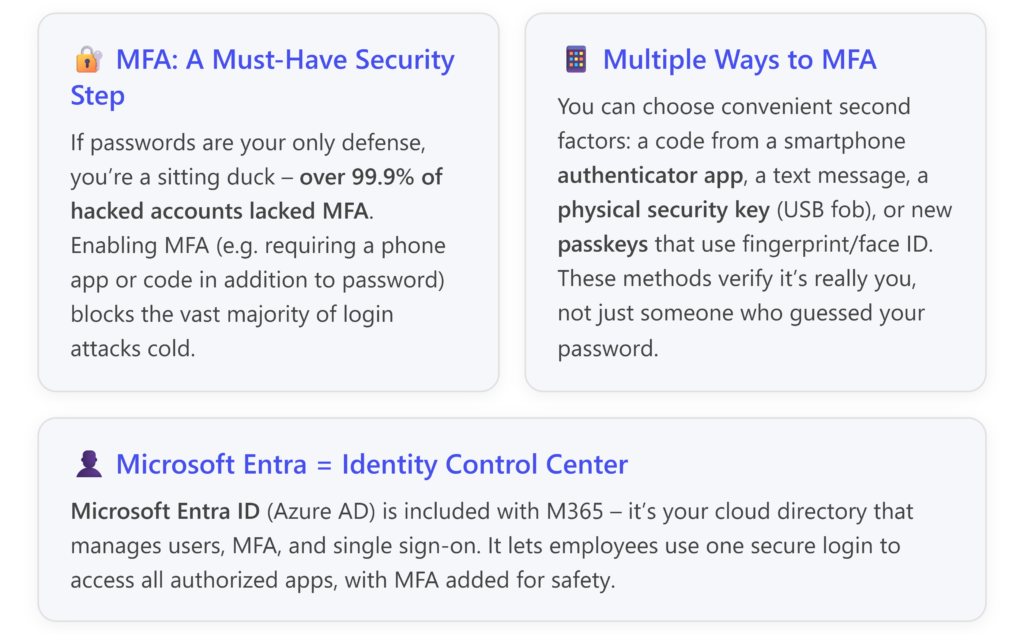
Multi-Factor Authentication means logging in requires two or more “factors”: something you know (password), plus something you have (for example, your phone or a hardware key) or something you are (a biometric like fingerprint or facial recognition). The idea is simple: even if one factor (like your password) is compromised, an attacker is highly unlikely to have the second factor.
Consider the common threat of phishing: a hacker tricks you (or an employee) into entering your password on a fake website. If you have MFA enabled, the thief still needs your second factor (e.g., the code on your phone) which they don’t have. It’s an extra step for you during login, but a gigantic leap in security. Microsoft’s internal analysis has famously shown that 99.9% of account compromise attacks can be prevented by MFA. To put it bluntly, if you’re not using MFA, you’re an easy target – nearly all successful hacks into cloud accounts happen on those without MFA. [xpiohealth.com]
Small businesses might think “Are hackers really targeting me?” Unfortunately, yes. Automated attacks don’t discriminate – there are bots continually trying stolen credentials or sending phishing emails to organizations of all sizes. Enabling MFA is like moving from a basic door lock to a high-security deadbolt with an alarm; most thieves will move on to easier prey.

MFA Options: Something You Know, Have, or Are
Microsoft Entra (Azure AD) supports a variety of MFA methods, giving you flexibility to choose what works best for your team:
- Authenticator Apps (Digital Token): This is one of the most common approaches. Users install a free app like Microsoft Authenticator or Google Authenticator on their smartphone. When logging in, they either receive a temporary 6-digit code in the app or a push notification to approve the sign-in. It’s quick and convenient (especially push notifications – you just tap “Approve” on your phone). These apps generate codes that refresh every 30 seconds, and they work offline too (the phone doesn’t need internet access for code generation). Microsoft Authenticator can even do passwordless login – where you use your phone app instead of typing a password, but that’s optional. [xpiohealth.com],
- SMS or Voice Call: Perhaps the easiest for new users – you can get a text message with a code, or an automated call reading a code. This still provides a second factor (your mobile number serves as something you have). However, SMS is considered slightly less secure than app codes or keys (SIM swap attacks exist, though rare). It’s still far better than no MFA at all, and may be a good starting point if some users won’t use a smartphone app.
- Physical Tokens: These are hardware devices that either display a code or plug into your computer. Examples include RSA SecureID fobs (which show a changing number like an app would) or FIDO2 security keys (like YubiKey, Feitian keys, etc.). FIDO2 keys can be USB sticks or even NFC devices; you register them to your account. When logging in, you press the key to provide the second factor. They often can use PIN or biometrics as well for added security. Physical tokens are great for employees who don’t want to use a personal phone – you can issue them a key. They are extremely phishing-resistant, especially FIDO2 keys, because they will only work with the legitimate website (they perform a cryptographic exchange with the real site, not with a fake one). Using a security key is as easy as inserting it and pressing a button when prompted.
- Biometrics / Windows Hello: If your PCs have Windows Hello (fingerprint readers or IR face cameras), those can be factored into authentication. Typically, Windows Hello replaces your password on that device with a biometric/PIN (it’s tied to the device), and Azure AD can treat Hello as satisfying MFA (since it’s something you are). This is seamless for the user – e.g., they login to their PC with a fingerprint, and that counts as MFA when accessing an online resource.
- Passkeys (FIDO2 Passwordless):Passkeys are an emerging technology that allows completely passwordless yet multi-factor authentication. In essence, a passkey is a credential stored on your device (and can sync across devices securely) that combines something you have (your device) and something you are (biometric) or know (device PIN). When you log in with a passkey, you just verify with your fingerprint or face on your phone or computer – no password required at all, and no traditional 6-digit code either. This method is phishing-resistant by design (your device will not release the credential to a fake site). Microsoft Entra ID now supports passkeys – e.g., you could use an iPhone’s Face ID or a Windows Hello as your login, even on third-party sites that accept Microsoft login. Passkeys are still rolling out, but they are likely the future of authentication. They combine security with ease of use. A nice analogy: passkeys are like a biometric ID card – only your device can present it, and only when you (with your face or finger) unlock it. [techcommun…rosoft.com],
In practice, many small businesses start with Authenticator apps or SMS codes as their MFA. It’s wise to encourage everyone to use the authenticator app because of the added convenience (no waiting for a text) and security (apps are tied to the device and harder to intercept). Microsoft’s Authenticator app also supports number matching now – when you try to sign in, it shows a number on the screen and you must type that number into your phone’s app to verify, ensuring a user isn’t blindly approving an unexpected prompt.
How Microsoft Entra (Azure AD) Makes MFA and Single Sign-On Easy
Think of Microsoft Entra ID as the control center for identity and access in your Microsoft cloud. If you use Microsoft 365, you already have an Entra ID tenant – it’s where all your user accounts live. Entra ID (previously known as Azure Active Directory) isn’t just for Microsoft services; it can act as an authentication source (an Identity Provider) for many of your other business applications too, via single sign-on.
Single Sign-On (SSO): Microsoft Entra allows users to sign in once with their Microsoft 365 credentials (often email and password + MFA) and then access multiple applications without separate logins. For example, after signing into Microsoft 365, you can open the Microsoft 365 App Launcher (the waffle menu) and jump into Outlook, SharePoint, or Teams without re-authenticating. Better yet, you can integrate third-party apps (like Dropbox, Adobe, Salesforce, etc.) so that they also accept your Entra ID login. Employees love SSO because they have fewer passwords to remember and fewer logins to do each day. Admins love it because access control is centralized – disable a user in Entra ID and it cuts off access to all linked apps at once.
Microsoft Entra’s SSO supports thousands of popular apps. It uses standards like SAML and OAuth to connect to non-Microsoft systems. And if you’re using Windows PCs joined to Azure AD, users get seamless sign-on to Microsoft services once they’re logged into their PC (it carries tokens behind the scenes). This is all included in the base service – no extra cost. [frontegg.com],
MFA via Entra ID: Entra ID is also where you configure MFA for your users. Microsoft provides a feature called Security Defaults – when enabled, it requires all users to register for MFA and use it whenever necessary. This is designed for small businesses as a one-click way to enforce good security. If you haven’t enabled it yet, you might have seen prompts or emails encouraging you to turn on MFA for your accounts – that’s Security Defaults in action.
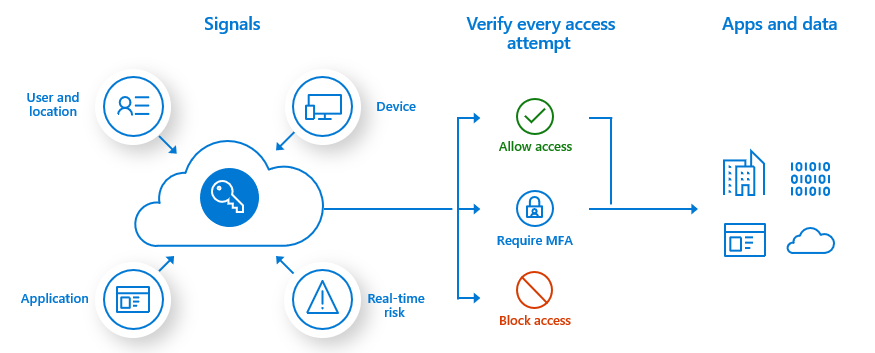
For more fine-grained control (like only require MFA for certain users, or to use Conditional Access policies that require MFA under certain conditions), you’d need Azure AD Premium (which, as noted earlier, comes with many Microsoft 365 business plans). With Conditional Access, for instance, you could set rules like “Don’t ask for MFA every time when the user is in the office network, but always ask when they’re remote” or “block access entirely from outside our country unless MFA.” These policies let you balance security with convenience, and Entra ID executes them automatically at login.
Entra ID and Passkeys/Passwordless: Through Entra ID, you can even roll out passwordless authentication for your org. This could mean using the Microsoft Authenticator app in phone-sign-in mode (where you sign in by just approving on the phone without typing a password) or using FIDO2 security keys or Windows Hello. It’s a bit more advanced, but it’s increasingly feasible even for smaller companies. Going passwordless eliminates the risk of phishing completely for those accounts.
Integration with Microsoft Entra Permissions Management: (Beyond core MFA/SSO, Microsoft Entra is an entire suite now. But one piece relevant to mention is Entra ID’s integration with Microsoft 365 and Azure for controlling access.) As a small biz, you might not need to dive deep here, but know that Entra ID is the backbone that connects user identities to everything they do in Microsoft 365, and it provides logs and monitoring of sign-ins. You can see if an attempted login was blocked due to risk, get alerts about atypical login locations, etc. — these are features in the Azure AD Identity Protection (P2) tier, but even the basic logs can be useful to review security.
Practical Steps to Implement MFA and Entra SSO
- Enable MFA for all users: The simplest way is via Azure AD Security Defaults (in Azure AD admin center, Properties > Manage Security Defaults). This will prompt users to setup MFA (usually via phone app or SMS) at their next login. Alternatively, if you have Conditional Access, create a policy requiring MFA for all users and apps.
- Educate and Enroll: Let your team know ahead of time that MFA is coming and why it’s important. Provide a short guide: e.g., “When you sign in, you’ll be asked to set up a second step. Have your phone handy. You can choose to receive a text or use the Microsoft Authenticator app. Here’s how to install the app…” Many users find authenticator apps easiest after the initial install. Emphasize that it’s a one-time setup and, after that, signing in will only occasionally prompt for the second factor (based on new device or if it’s been a while).
- Consider MFA methods: By default, Azure AD might offer all methods. Decide if you want to allow SMS or push only, etc. You can configure authentication methods in the Azure AD portal (you might allow SMS for older users who are not app-friendly, etc.). Also, for any admin or highly privileged accounts, require using the Authenticator app or a hardware key (SMS is not secure enough for admin accounts).
- Test it out: Enable MFA for a couple of test accounts first (or pilot with yourself and maybe one tech-savvy colleague) to make sure the login flow works as expected and to get familiar with the process.
- Enable SSO for other apps: Identify if there are other cloud services you use that support SSO/SAML. For instance, if you use a third-party CRM or a file sharing service, check if it can integrate with Azure AD for login. Many can – often it’s called “Entra ID/Azure AD Single Sign-On” in their settings. Typically, you’d go to Azure AD > Enterprise Applications > New Application, find the app in the gallery, and set up SSO following provided instructions. This might be a bit technical, but many guides exist (and Microsoft support can help). Even if you don’t do this immediately, know that as you grow, you don’t necessarily need to invest in a separate SSO product – you already have one with Entra ID.
- Use the My Apps portal: Tell your users about https://myapps.microsoft.com. After signing in (with MFA), this portal will show all the apps they have access to (including Office apps and any third-party ones you integrated). It’s like a launchpad – they click an icon and they’re in without another login. This reinforces the convenience aspect of using Entra ID.
- Monitor and Maintain: Once MFA is in place, you might occasionally get questions like “I got a new phone, how do I setup Authenticator again?” Azure AD has an option for users to self-service update their authentication info (via aka.ms/mysecurityinfo). Make sure at least one admin account has additional backup methods (or a hardware token) in case the primary method is lost – you don’t want to lock yourself out. Keep an eye on sign-in logs for any unusual activity; Azure AD will flag “risky sign-ins” if someone’s credentials are guessed or if there’s an atypical attempt.
Microsoft Entra Licenses – Already Included
A quick note on licensing: Microsoft Entra ID comes in different editions (Free, Premium P1, P2). The good news is that even the free tier includes MFA and basic SSO capabilities for Microsoft 365 apps. All Microsoft 365 business subscriptions include at least the free tier of Azure AD (Entra ID) for your tenant. If you have Microsoft 365 Business Premium or E3, you actually have Azure AD Premium P1 included, which gives you Conditional Access, more detailed logs, and some advanced features. The top-tier (P2) with risk-based adaptive policies is in E5. But for the purposes of straightforward MFA and SSO, your existing M365 license already has you covered. You do not need to pay extra to enforce MFA on your accounts – please take advantage of it! It’s part of the package.
Microsoft Entra ID is a broad topic (encompassing advanced to solutions like Identity Governance, external identities, etc.), but for a small business, its primary value to you is managing users, passwords, and MFA in one place, and letting your team access all their work apps securely with one login.
Additional Resources and Links
- Microsoft Authenticator App Info: Official Microsoft Support page “About Microsoft Authenticator” – explains how the app works and how it can do passwordless sign-in.
- Why MFA is critical: Microsoft’s security blog and many third-party cybersecurity blogs have emphasized the importance of MFA. For instance, an article noting “78% of Azure AD admins still only use passwords” and the need to improve that, and another citing Microsoft research that MFA reduces account compromise risk by over 99%. [xpiohealth.com]
- Set up MFA in Microsoft 365: Microsoft Learn guide on enabling multi-factor authentication for users in M365/Azure AD (covers methods, user registration, etc.).
- Overview of Microsoft Entra ID: Microsoft’s documentation or a friendly blog that introduces Entra ID (Azure AD) for non-experts. For example, the ALTA-ICT blog “Microsoft Entra SSO Complete Overview” explains in simple terms how Entra ID allows one set of credentials to access multiple apps. [frontegg.com]
- Passkeys in Entra: Microsoft Mechanics video & blog on https://techcommunity.microsoft.com/t5/microsoft-mechanics-blog/synced-passkeys-in-microsoft-entra-for-phishing-resistant-mfa/ba-p/4472994 – demonstrates the new passkey feature and how it’s phishing-resistant. This is forward-looking for those interested in the latest in authentication, though deploying passkeys organization-wide might be a future step. [techcommun…rosoft.com]
By implementing MFA through Microsoft Entra ID, you add a formidable layer of defense for your business logins with minimal inconvenience to users. And by leveraging Entra’s single sign-on capabilities, you actually simplify users’ lives (fewer passwords and logins) while increasing security – a rare win-win in IT. In today’s threat landscape, using MFA is no longer optional; it’s an essential best practice. Luckily, your Microsoft 365 subscription gives you everything you need to roll it out easily. So go ahead – lock the “front door” of your digital assets with MFA and enjoy the peace of mind that comes with significantly improved security.