
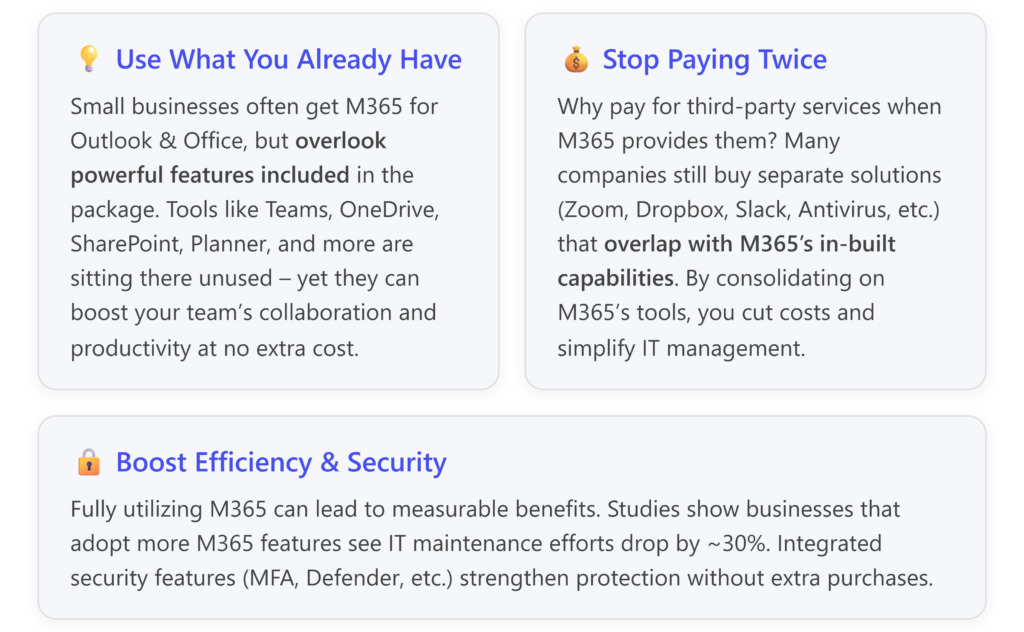
Many small businesses subscribe to Microsoft 365 for essentials like Email (Outlook) and Office apps (Word, Excel, etc.), but end up using only a fraction of what they’re paying for. It’s like buying an all-inclusive gym membership and only ever using the treadmill. In this post, we’ll reveal how to unlock the hidden goldmine of features in your Microsoft 365 (M365) subscription to improve operations and even save money by retiring redundant third-party tools.
Do You Have “Shelfware” in M365?
“Shelfware” refers to software that you have licenses for but aren’t actually using. In the context of Microsoft 365, underutilization is very common. Small businesses often sign up to get the core productivity tools: [innosec.co.uk]
- Exchange Online (for Outlook email and calendars),
- Office apps (Word, Excel, PowerPoint),
- Teams (for chat and meetings).
These alone justify the cost for many. However, an M365 Business or Enterprise license also includes a long list of additional apps and services. If you’re not deploying them, you’re effectively leaving money on the table and possibly spending again elsewhere for similar capabilities.
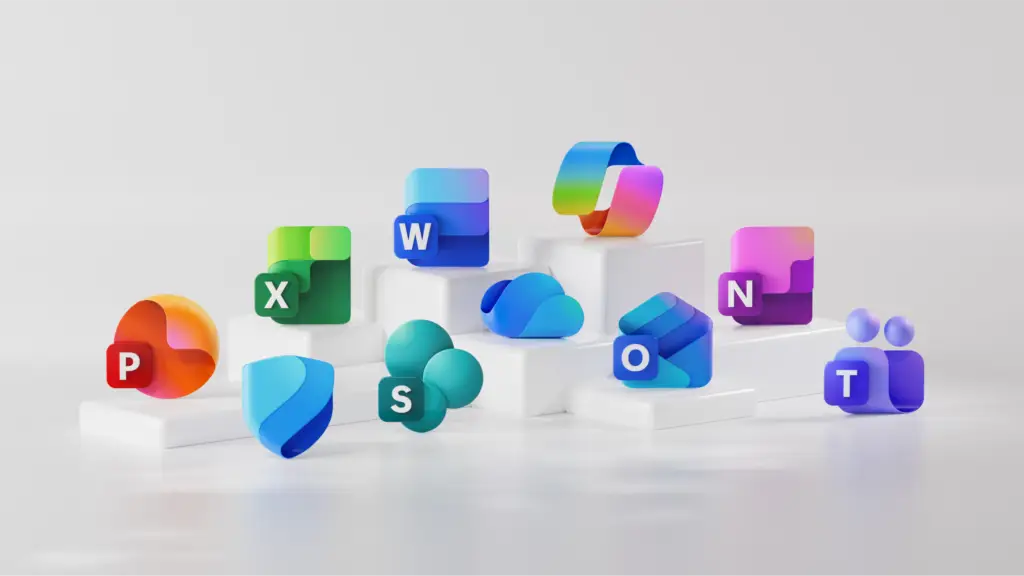
Common examples of underused M365 tools and their third-party equivalents that you might be paying for separately:
- OneDrive & SharePoint: Included cloud storage and collaboration for files. Many businesses pay for Dropbox, Google Drive, or Box, not realizing everyone with an M365 account already has 1 TB (or more) of OneDrive storage plus team SharePoint sites. [innosec.co.uk]
- Microsoft Teams (advanced features): Beyond basic chats and video calls, Teams can integrate apps, workflows, and act as a central hub for work. Some SMBs simultaneously pay for Slack or Zoom upgrades when Teams could serve those needs (with no extra licenses).
- Microsoft Defender & Security Suite: Depending on your plan, you may have Microsoft Defender for Office 365 (protects email from phishing), Defender for Endpoint (antivirus/anti-malware), or at least Windows’ built-in Defender Antivirus. Yet, companies sometimes purchase third-party antivirus or email security services unnecessarily. The native M365 security features are tightly integrated and often sufficient for SMB needs. [bluemantis.com],
- Intune (Microsoft Endpoint Manager): If you have devices to manage (PCs or phones), M365 Business Premium and Enterprise plans include Intune for device management and security policies. This could replace a paid mobile device management solution.
- Azure AD / Entra ID Premium: M365 includes identity management capabilities like Single Sign-On and MFA enforcement (more on MFA in the next blog). Instead of paying for a separate identity or SSO service, use what you have – Entra ID (formerly Azure AD) to manage users and access across various apps.
- Planner and To Do: These task management tools come with M365. Small teams often sign up for Trello, Asana, or other project trackers, but Planner provides kanban boards for projects and To Do helps individual task tracking – fully integrated with Outlook and Teams. [innosec.co.uk],
- Forms: Need to collect survey results or customer feedback? Microsoft Forms is included, but we sometimes see businesses paying for SurveyMonkey or Google Forms.
- Power Automate: For automating repetitive tasks and integrating apps. Instead of buying separate automation software or paying a developer, many workflows (like copying email attachments to OneDrive, sending notification messages when a form is submitted, etc.) can be done in-house with Power Automate (included in most plans).
- Power Apps and Power BI: Higher tier plans include the ability to create custom business apps (Power Apps) or dashboards (Power BI Pro). Before commissioning a costly custom app, see if you can prototype it with these tools at no extra license cost.
- Microsoft Bookings: An online appointment scheduling tool included in Business Premium and some other plans. If you’re paying for a scheduling service (like Calendly or Acuity) to let clients book appointments, Bookings might replace it nicely.
Analogy: Imagine you have a Swiss Army knife (M365) with 17 attachments, but you only ever use the knife and occasionally the scissors. Meanwhile, you went out and bought a separate corkscrew, screwdriver, and flashlight because you forgot or never learned that they were already in your Swiss Army knife. 🌟 Maximising your M365 is about unfolding those hidden attachments so you don’t buy extra tools.
Which M365 Apps Could Replace Third-Party Solutions?
Let’s break down a few key areas where fully using M365 can consolidate your IT stack:
| Business Need | Common Third-Party Solution | Microsoft 365 Built-In Solution |
| Team chat and video meetings | Slack, Zoom, Google Meet | Microsoft Teams – for chat, video calls, webinars. Now with advanced features: webinar hosting, Teams Channels for projects, app integrations. |
| File storage and sharing | Dropbox, Google Drive, Box | OneDrive & SharePoint – 1 TB per user for cloud storage, plus team SharePoint sites for sharing, with robust permission control. Integrated with Office apps (co-author in real time) and Teams. |
| Project & task management | Trello, Asana, Basecamp | Microsoft Planner & To Do – lightweight project boards and to-do lists linked to Outlook and Teams. Great for task tracking without new software. |
| Email security & anti-spam | Third-party spam filter services | Defender for Office 365 – advanced phishing and spam protection built into Exchange Online (some plans). Microsoft maintains huge threat databases to keep spam/Phishing out. |
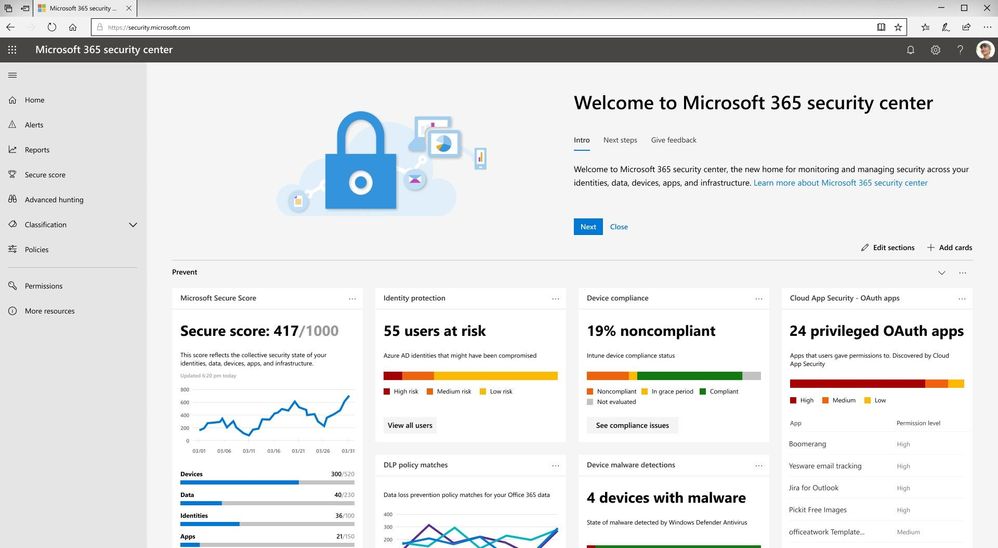
| Endpoint/Device security | Norton, McAfee, other AV suites | Microsoft Defender Antivirus – built into Windows 10/11 and managed via Intune or the Security Center. For Business Premium/E5: Defender for Endpoint with centralized device monitoring. |
| Device management (PC/Mobile) | AirWatch, MobileIron, other MDM | Intune (Endpoint Manager) – included in Business Premium/E3/E5, lets you enforce device PINs, encryption, app controls on employee devices. No separate MDM subscription needed. |
| Identity & Single Sign-On (SSO) | Okta, LastPass Enterprise, etc. | Microsoft Entra ID (Azure AD) – central identity service included with M365 to manage users, MFA, and SSO to many cloud apps. (Entra ID P1 is in Business Premium, giving Conditional Access, etc.) |
| Internal communication / intranet | Confluence, CMS, email newsletters | SharePoint Online & Yammer/Viva Engage – use SharePoint to create an internal website or knowledge base for your team. Yammer/Viva for company-wide announcements and community discussions (often underused). |
| Surveys & forms | SurveyMonkey, Google Forms | Microsoft Forms – create surveys, quizzes, or polls easily and collect responses in Excel. Great for simple data collection (customer feedback, event RSVPs). |
| Scheduling appointments | Calendly, Acuity | Microsoft Bookings – allows external people to book time slots on your calendar that you define. Ideal for consultants, salons, etc., and it syncs with your Outlook calendar to avoid double-booking. |
| Business Intelligence dashboards | Tableau, other BI tools | Power BI – if you have M365 E5 or add Power BI, you can create rich data visualizations. Even without Pro license, the free version might suffice for individual analysis. |
By reviewing the above, you might identify “Hey, we’re paying for X, but we already have Y from Microsoft that does that!” For example, one common scenario: a business pays for Dropbox for file sharing with clients, not realizing that OneDrive/SharePoint can generate external sharing links with equal ease and security (and with better integration to your Office files). Another example: paying for Zoom Pro for large meetings, when Teams (included) now supports webinars and large meetings up to 300 or more attendees (and even larger broadcast events).
Benefits of Embracing M365’s Full Suite
1. Cost Savings: The obvious one – eliminate redundant subscriptions. If you drop, say, a $15/user/mo Zoom+Slack combo because Teams covers it, that’s significant yearly savings. Microsoft 365’s Total Economic Impact studies by Forrester have found that consolidating on M365 can save businesses money; for instance, one study noted a 31% reduction in IT maintenance time and 36% reduction in time spent managing software updates when SMBs fully utilized Microsoft 365’s tools. In practice, less time switching between platforms and fewer vendors to pay often translates to direct savings. [innosec.co.uk]
A Microsoft partner blog put it succinctly: “By leveraging built-in tools like Defender, Entra (Azure AD), and Intune, businesses can cut third-party spend while improving security and operational efficiency.”. In other words, one Microsoft 365 license can replace a bunch of point solutions. [bluemantis.com]
2. Integration = Efficiency: All the M365 apps are designed to work together seamlessly. Your Teams chats integrate with OneDrive and SharePoint (so you can share files easily), Outlook can surface your Teams meeting schedule, Planner tasks can appear in your Outlook To-Do bar, etc. By using separate products from different vendors, you often end up doing manual work to bridge gaps (like downloading a file from Dropbox to attach to a Slack message – a trivial example, but it adds up). With M365, the ecosystem is unified: e.g., attach OneDrive files in Outlook with a click, or co-author a Word doc in Teams while on a call. Less context-switching = more productivity.
3. Simplified Management: It’s much easier for your IT (even if “IT” is just one person or an external consultant) to manage one ecosystem. User accounts in Microsoft 365 double as logins for all services, so user provisioning/deprovisioning is one step. Security policies can be set once in Entra ID/Intune and apply across devices and apps. There’s a central admin portal (Microsoft 365 Admin Center, plus specialized portals for security, device management, etc.) to monitor everything. With multiple vendors, you’d have separate admin dashboards and have to ensure, for example, a user removed from your AD is also removed from Slack/Dropbox/etc. – a recipe for something to be forgotten.
4. Enhanced Security Posture: Microsoft 365 includes enterprise-grade security features that many small businesses don’t realize they have at their fingertips. For example:
- Multi-Factor Authentication (MFA): You can (and should) enable MFA for your M365 accounts (even with the base license, security defaults enable this) – dramatically reducing chances of account breaches. We’ll talk more about MFA in the next section, but note it’s part of your subscription, no need for a third-party MFA service.
- Data Loss Prevention (DLP): Certain plans let you use DLP policies to prevent sensitive info (like credit card numbers or personal data) from being shared outside. This might negate buying a separate DLP product. [innosec.co.uk]
- Conditional Access: If you have Entra ID P1 (included with Business Premium or E3), you can set policies like “only allow login to M365 if device is compliant or from certain locations” – adding layers of defense.
- Microsoft Defender suite: This covers email scanning, safe links, safe attachments, device antivirus, etc., which means you might not need that third-party email security gateway or endpoint security platform. [bluemantis.com]
A real-world note: Many cyber insurance policies now require MFA and endpoint protection. If you leverage Microsoft 365’s built-in MFA and Defender, you’re meeting these requirements without extra purchases.
5. Better Collaboration & Modern Work: Beyond cost and security, fully utilizing M365 can transform how your team works. Tools like Teams + SharePoint enable a central hub for collaboration – e.g., create a Team for your company or projects where chats, files, and tasks live together. Everyone always has the latest version of files (no more emailing attachments back and forth). Features like Live co-authoring in Word/Excel mean multiple people can work on a document simultaneously, seeing changes in real-time – if you’re still emailing documents around, this is a game changer. Whiteboard (digital whiteboarding app), OneNote for shared notebooks, Power Automate to streamline workflows – these can improve productivity and are included or available in many M365 plans. [innosec.co.uk]
How to Start Maximising Value
- Inventory your subscriptions and needs: List out all the IT and software subscriptions you currently pay for (communications, storage, security, etc.). Then cross-check which of those functions have an equivalent in your M365 plan. Microsoft provides documentation on what’s included in each license. For example, if you have Business Standard vs Business Premium vs Enterprise E3/E5 – the features differ slightly. (Business Premium includes advanced security and device management that Standard doesn’t, for instance).
- Prioritize low-hanging fruit: Identify which third-party service could be replaced with minimal disruption. Perhaps file storage (migrating data from Dropbox to OneDrive) or moving from Zoom to Teams for meetings might be straightforward wins. Or simply start using Planner for task tracking in your next team meeting instead of that Trello board.
- Enable and pilot features: Turn on relevant services in the M365 Admin center. For instance, if you want to try using SharePoint, create a Team Site and move a small department’s files there to test out. If considering Intune for device management, maybe enroll a couple of company devices first and try applying basic policies.
- Train your team: One reason businesses underuse M365 is that staff aren’t aware of these tools or how to use them. Invest a bit in internal training or demonstrations. Show employees how to schedule a Teams meeting, how to use OneDrive instead of email attachments, or how to mark tasks in Planner. Microsoft offers a lot of free training videos and tutorials aimed at end-users. Also, emphasize the convenience – e.g., “You can access all these tools with the same login and from the Office.com homepage.” [innosec.co.uk]
- Turn off duplicate subscriptions when ready: Once you’ve migrated data or adopted the M365 tool in production comfortably, you can cancel the redundant service. Be careful to time this properly to avoid disrupting workflow. (E.g., don’t kill the Dropbox account until you’re sure all needed files are in OneDrive and accessible.)
- Utilize Microsoft’s support and community: As an M365 subscriber, you have access to Microsoft Support for setup help, and there’s a huge community of IT professionals who share tips (the Microsoft Tech Community forums, countless blogs). If you’re struggling to make a certain M365 feature work for you, chances are someone else has written about it or can help.
Official Resources and Links
- Microsoft 365 for Business Overview: Check out Microsoft’s official https://support.microsoft.com/en-us/office/meet-microsoft-365-the-productivity-cloud-designed-to-help-everyone-achieve-what-matters-5f376f32-749e-4204-aefa-4a48e67ca9ba – it highlights many apps you might not be using yet.
- Underused M365 Features – Microsoft Partner blog on https://jadexstrategic.com/underutilization-of-microsoft-365/ (Jadex Strategic) – addresses common barriers and missed tools for businesses. [innosec.co.uk],
- Cost Optimization with M365: “Stop Paying Twice: M365 Optimization” by Blue Mantis – explains how mapping third-party spend to M365 features can build a case for consolidation. [bluemantis.com],
- Microsoft 365 Training Center: Microsoft’s free https://support.microsoft.com/training has tutorials for each app (e.g., “Microsoft Teams tips for beginners”, “Get started with OneDrive for Business”, etc.) which you can share with your team.
By making full use of your Microsoft 365 subscription, you can improve your company’s efficiency and security with tools you already pay for – effectively getting more bang for your buck. It might require some initial effort to adopt new workflows, but the payoff in productivity and cost savings is well worth it. Don’t let those powerful features gather dust; deploy them and watch your small business run like a much bigger one!