
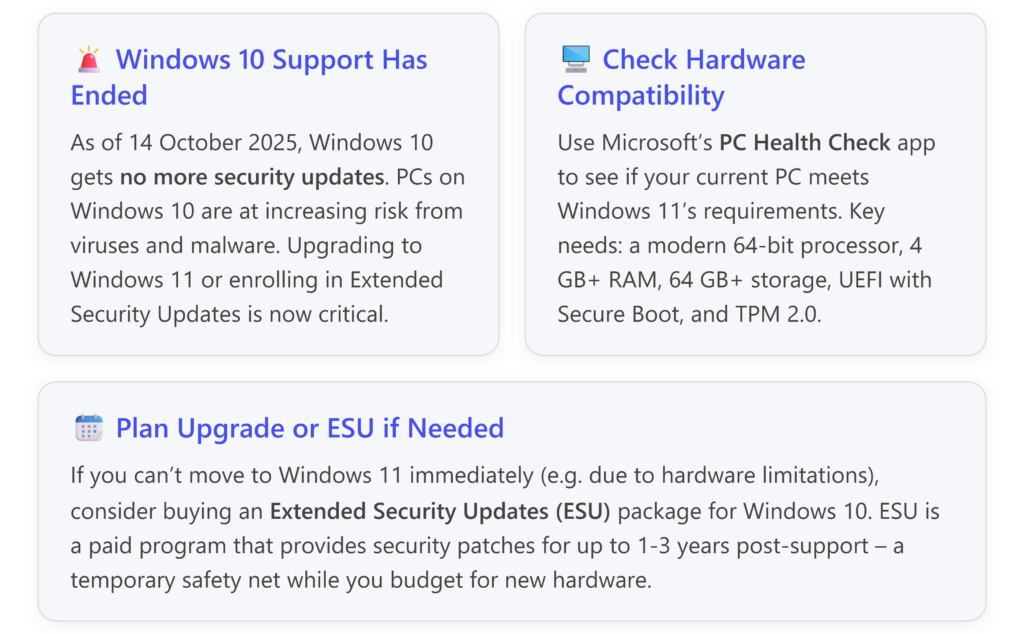
Microsoft has ended support for Windows 10 on October 14, 2025, which means it no longer receives security updates or bug fixes. Continuing to run Windows 10 now is a bit like leaving the doors to your business unlocked – your PC will still work, but it’s exposed to new threats. Upgrading to Windows 11 ensures you stay protected and compliant with modern security standards. Here’s how to plan a smooth migration: [support.mi…rosoft.com]
Why the Urgency to Upgrade?
No more updates = security risks. Without regular patches, Windows 10 systems won’t receive fixes for new viruses, ransomware, or hacker exploits. It’s like a car no longer eligible for safety recalls – it still runs, but any newly discovered brake flaw stays unfixed. Microsoft warns that after support ends, PCs on Windows 10 are increasingly vulnerable and technical support will no longer be available. Upgrading to Windows 11 restores that shield of ongoing updates and support.
Modern features and performance. Windows 11 isn’t just about security; it offers a refreshed, more efficient user interface and features designed for today’s hybrid work (for example, improved window management and integration with Microsoft 365). It’s a bit like upgrading from an old phone to a new smartphone – you get better performance and new capabilities that can boost productivity.
Checking If Your PC Can Run Windows 11
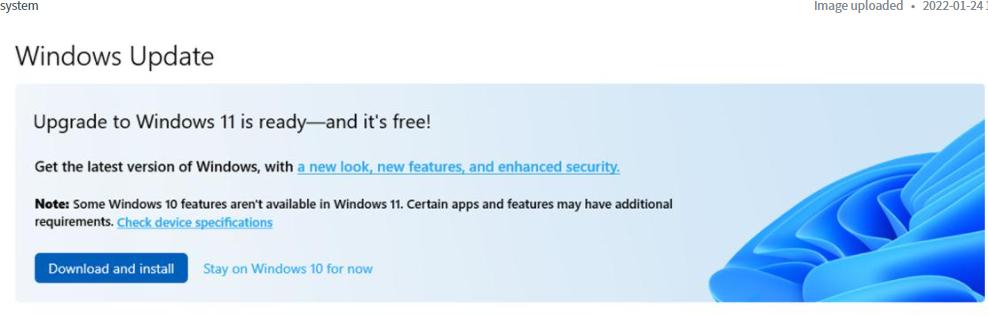
Not every older PC can upgrade to Windows 11. Microsoft has set minimum hardware requirements to ensure Windows 11 runs smoothly and securely. Before trying to install it, verify your hardware:
- Operating System: You must be on Windows 10 version 2004 or later to directly upgrade. [microsoft.com]
- Processor: 1 GHz or faster, 2 or more cores, 64-bit CPU (8th Gen Intel/AMD Ryzen 2 or newer is generally required).
- Memory: 4 GB RAM or more.
- Storage: 64 GB or larger drive.
- System Firmware: UEFI capable of Secure Boot.
- Security: Trusted Platform Module (TPM) version 2.0 enabled.
- Graphics: DirectX 12 compatible graphics card.
The easiest way to check these is using the PC Health Check app (a free tool from Microsoft). Simply download and run it, and it will report if your PC meets Windows 11’s requirements. If something like TPM or Secure Boot is turned off, the tool or documentation can guide you to enable them in BIOS. [support.mi…rosoft.com][microsoft.com]
If your PC passes the test: Great – you can proceed with planning the upgrade.
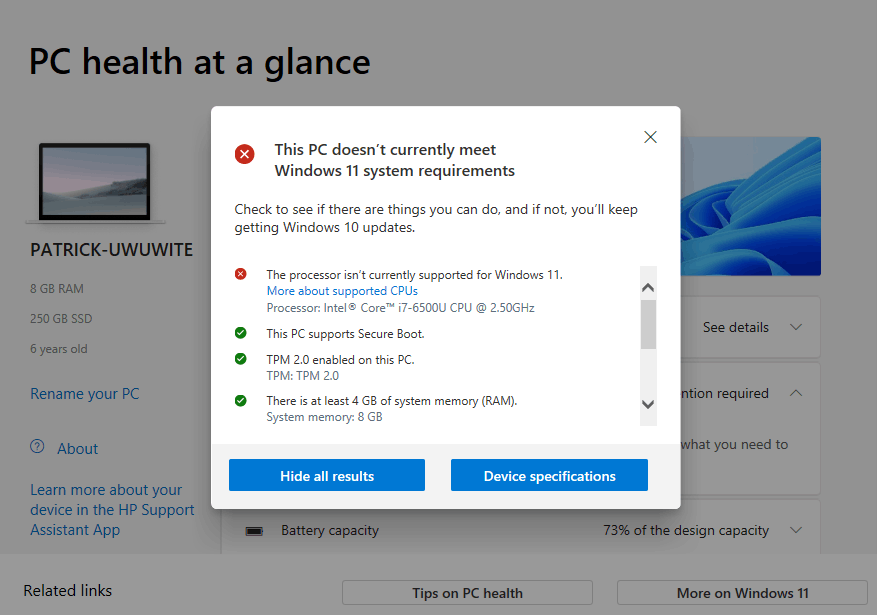
If your PC fails (incompatible): Don’t panic. It may be due to an older CPU or missing TPM 2.0. In this case, you have a few options:
- Enable missing features: Sometimes TPM 2.0 or Secure Boot are available but disabled on your system. Check your BIOS settings (with help from an IT professional if needed) to enable them. [microsoft.com]
- Replace hardware: If the PC is too old (e.g. a 2015-era machine), it might never meet the requirements. You should plan to replace it with a new Windows 11-ready PC in the near future. Microsoft even provides a tool to help find the right new PC. [support.mi…rosoft.com]
- Temporary stay on Windows 10 with ESU: If immediate replacement isn’t feasible, consider Extended Security Updates.
Extended Security Updates (ESU): Buying Time Securely
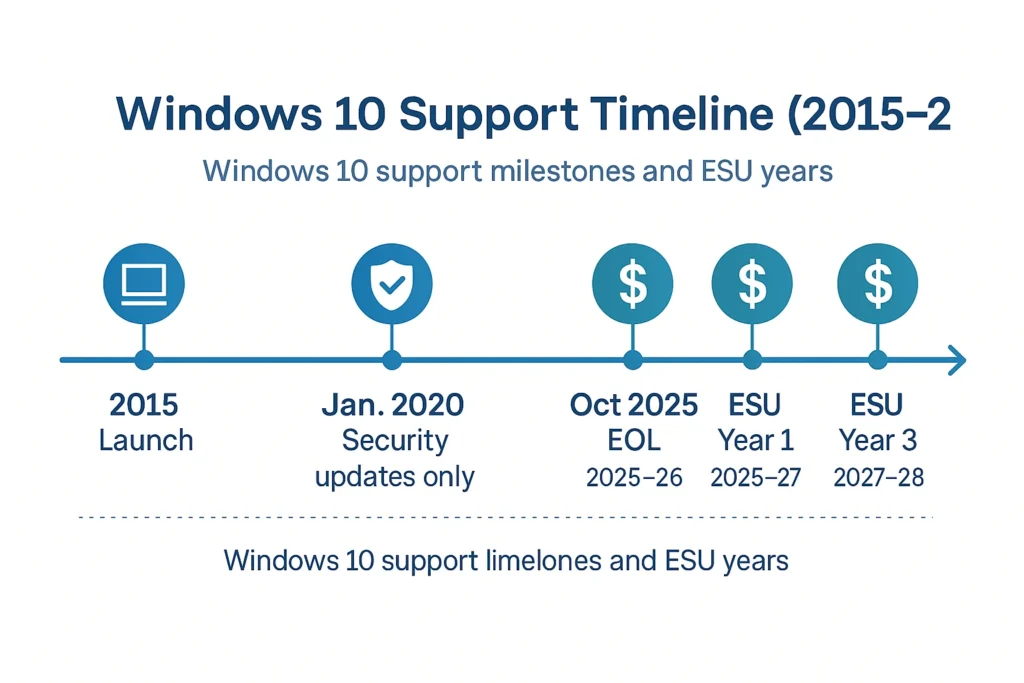
Microsoft’s Extended Security Updates program is essentially an insurance policy for those who can’t upgrade by the deadline. For a fee, Microsoft will continue to provide critical security patches for Windows 10 machines after Oct 2025, up to three years max (for businesses). Small businesses or individuals can enroll for up to one year of extended updates via the Windows 10 Consumer ESU program (with the expectation that you’ll move to Windows 11 within that year). [learn.microsoft.com], [learn.microsoft.com][support.mi…rosoft.com]
Think of ESU like an extended warranty on an aging car – it covers safety fixes for a bit longer, but it’s not meant to be used forever. ESU requires a paid subscription per PC (about $61 USD per device for the first year, and doubling in cost each subsequent year). Also, you must have Windows 10 version 22H2 installed to even qualify. [learn.microsoft.com]
Key advice:Use ESU only as a stopgap. If you absolutely need a few extra months to budget and plan for new PCs or upgrades, ESU keeps you protected. But since the price increases each year, investing that money in new Windows 11 hardware might be more cost-effective in the long run. [learn.microsoft.com]
Planning the Upgrade Process
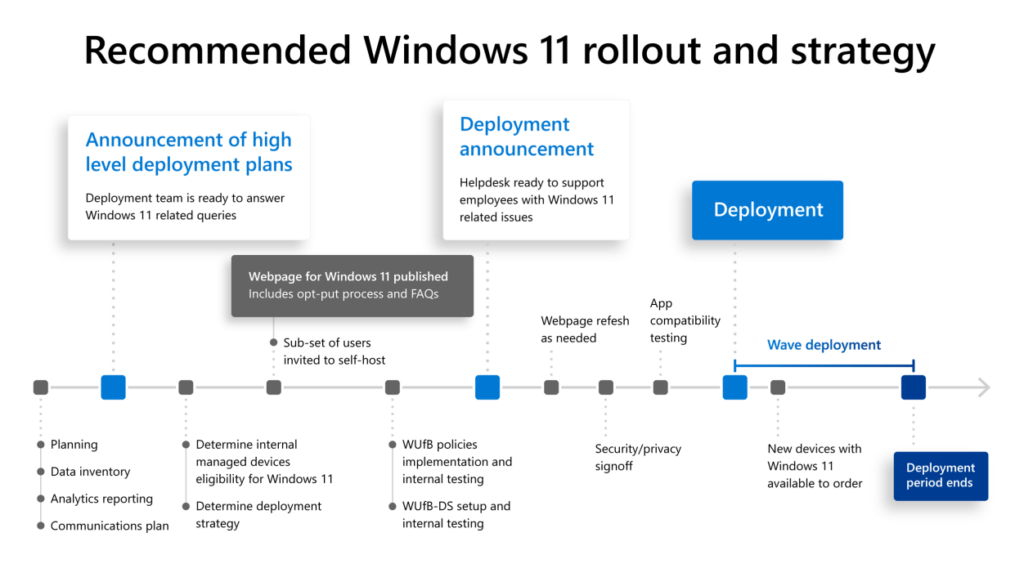
Once you’ve confirmed compatibility or acquired new hardware, you should:
- Back Up Your Data: Before any major OS upgrade, ensure you have a full backup of important files (to an external drive or cloud storage like OneDrive). While in-place upgrades usually keep your files, it’s better to be safe.
- Read Official Upgrade Guidance: Microsoft provides step-by-step guides to move from Windows 10 to 11. Start with “Upgrade to Windows 11: FAQ” on Microsoft’s site or the “Getting ready for the Windows 11 upgrade” article. These cover how to initiate the upgrade via Windows Update if eligible, what to expect, and how to troubleshoot common issues. [support.mi…rosoft.com], [support.mi…rosoft.com][support.mi…rosoft.com]
- Use Windows Update or Installation Assistant: If your PC is eligible, the upgrade may appear in Windows Update (Settings > Update & Security > Windows Update) – just click “Check for updates” and look for a Windows 11 upgrade option. If it’s not showing but you believe your PC is compatible, you can use Microsoft’s Installation Assistant or Media Creation Tool to manually start the upgrade. [support.mi…rosoft.com][support.mi…rosoft.com]
- Check Application Compatibility: Most apps that ran on Windows 10 will run on Windows 11. But double-check any critical business software (accounting, POS systems, etc.) by contacting the vendor or checking their website. Hardware accessories (like printers or scanners) might need updated drivers – visit manufacturer websites for Windows 11 driver support if needed. [support.mi…rosoft.com]
- Decide Timing: Perform the upgrade at a time when you can afford downtime. The upgrade can take an hour or more to download and install, and your PC will reboot multiple times. Perhaps do it after hours or on a weekend to avoid work disruption. [support.mi…rosoft.com]
- Post Upgrade Checks: After installing Windows 11, confirm that your files are intact and that key applications run properly. Windows 11 allows a 10-day window to rollback to Windows 10 if you encounter serious issues or just aren’t ready for the new OS. (Keep in mind though, rolling back returns you to an unsupported OS if past the EOL date.) [support.mi…rosoft.com]
If You Stay on Windows 10 a Bit Longer…
For those who absolutely must keep some PCs on Windows 10 beyond the EOL date (due to legacy software or hardware dependencies), take these precautions:
- Enroll in ESU as mentioned, so you continue getting critical patches. [support.mi…rosoft.com]
- Isolate old systems: Treat them as high-risk. Don’t use them for web browsing or email if possible (common infection vectors). Keep good antivirus (Windows 10’s built-in Microsoft Defender will still work, and Microsoft 365 Apps will get security updates on Win10 until 2028). [support.mi…rosoft.com]
- Plan replacement ASAP: Keep a clear timeline. For example, “Replace machine X by Q2 2026 when ESU expires.” Write it into your IT budget.
Helpful Links for Upgrading
- Microsoft’s PC Health Check Tool: https://aka.ms/download-pchealthcheck – Quick way to verify Windows 11 compatibility. [support.mi…rosoft.com]
- Windows 11 System Requirements (Official): Microsoft’s page listing detailed requirements and which CPUs are supported. [microsoft.com]
- Upgrade to Windows 11 – FAQ: Official FAQ covering common questions and steps for upgrading. [support.mi…rosoft.com], [support.mi…rosoft.com]
- Windows 10 End of Support Guidance: Microsoft’s advisory on what end of support means and options (upgrade, new PC, or ESU). [support.mi…rosoft.com],
- Windows 11 Installation Guide: Step-by-step from Microsoft on various installation methods (Windows Update, Installation Assistant, ISO). [support.mi…rosoft.com]
By proactively upgrading to Windows 11, you’ll keep your business’s computers secure and supported. Don’t wait for a security scare to make the move – an upgrade now is a lot easier (and cheaper) than dealing with a malware incident later. Think of it as upgrading the locks and alarm system on your digital office.